ABOUT US

Our development agency is committed to providing you the best service.

OUR TEAM

The awesome people behind our brand ... and their life motto.

  • Radha Roy

    Country Head

    I long for the raised voice, the howl of rage or love.

  • Shruti Das

    GM,India

    Contented with little, yet wishing for much more.

  • Divya Narayan

    Branch Head, Banglore

    If anything is worth doing, it's worth overdoing.

OUR SKILLS

We pride ourselves with strong, flexible and top notch skills.

Marketing

Development 90%
Design 80%
Marketing 70%

Websites

Development 90%
Design 80%
Marketing 70%

PR

Development 90%
Design 80%
Marketing 70%

ACHIEVEMENTS

We help our clients integrate, analyze, and use their data to improve their business.

150

GREAT PROJECTS

300

HAPPY CLIENTS

650

COFFEES DRUNK

1568

FACEBOOK LIKES

STRATEGY & CREATIVITY

Phasellus iaculis dolor nec urna nullam. Vivamus mattis blandit porttitor nullam.

PORTFOLIO

We pride ourselves on bringing a fresh perspective and effective marketing to each project.

Showing posts with label tip. Show all posts
  • Rooting – A way to unlock the full potential of your Android device

    Do you want to be a super user of Android? If you are an Android user, then you might have heard about Rooting. It is just a technical term that sounds tough, but even a casual smartphone user can get into and find something beneficial for their device.


    But maybe while unlocking the full potential you might also void your warranty or even leave you with a bricked device. So let us look at the benefits as well as the risks in short.


    What is Rooting?
    Rooting is jailbreaking for Android and allows users to dive deeper into a phone’s sub-system. It’ll allow you to access the entire OS and customise just about anything on your android. It can also get around any restrictions that the manufacturer had implied like you can run more apps, overclock or underclock the processor, replace the firmware etc anything. All you need to do is just back up the current software and install a new custom ROM (modified android version)


    Benefits of Rooting

    • First thing is you can get rid of bloatware (unwanted software included by manufacturer) which is impossible to uninstall
    • You can install special apps and install custom ROMs which can boost your devices’ performance, for example if your phone is struck with an older Android version and it is not getting any update, then with custom ROM you could load up the latest Android version
    • You can manually accept or deny app permissions
    • You can set up wireless tethering even if it has been disabled by default in the device

    Risks of Rooting

    • You might end up voiding your warranty, some manufacturers or carriers will use rooting as an excuse to void your warranty. But keep in mind you can unroot anytime just by simply flash(install) the backup ROM you already made.
    • Rooting might introduce some security risks depending on what services or app you use on your device.
    • You run at a least risk when you tamper too much, that might lead to bricking your device (screwing up your device software that it would never run properly). To avoid bricking just follow the instructions and ensure that the instructions you are following works well with your device. So do some research to avoid bricking completely.
    • Every device has its own unique method to rooting. So just Google your Device model and search the term root (ex: MOTO G3 Root). You’ll get the steps. Have fun and enjoy rooting and unleash the full potential of your device. 
  • How to Increase Your Smartphone's Battery Life

    Here’s a way out of the nightmare of getting ‘Low Battery’ notification – just delete the Facebook app from your iPhone and android phones.

    Like it or not, but deleting FB app and opening it through your browser can actually extend your phone’s battery life by 15 percent, reports the You.


    This little trick works especially on Android phones, the Guardian reported after trying it out. Last year, Facebook came under fire because the app automatically showed videos in the background even though users hadn’t opened it. As a result, it affected the battery life.

    But it is not necessary to remove the Facebook messenger.

    Ari Grant of Facebook said at the release of Facebook’s new version that certain issues had been identified and adaptations and improvements had been made.

    Now, for the social media addicts, who suffer from FOMO (Fear Of Missing Out) and don’t want to remove Facebook from your iPhone, then here are certain other alternatives:
    • Switch off your WiFi;
    • Don’t use the vibration function;
    • Close apps you’re not using;
    • Reduce the screen timeout time;
    • Dim your display.
  • Tips to Save Internet Data Pack

    When 3G/4G services were coming to India, we thought we might finally have an alternative to cable broadband with high-speeds and reliable connections. What most users never thought was that even the biggest data plans run out especially if you get very high internet speeds.


    If it’s unlimited, it’s throttled and you don’t get the full potential of you 3G/4G connection. We have made a list of tips that will help you save your megabytes and make your internet data limit last longer.

    Get Opera Max for Going Online

    If you want to save data, Opera Max Data Manager is a must. It can handle data savings single-handedly. Opera Max provides system wide data compression so that data can be saved while all the apps using mobile data in the foreground as well as the background connect to the internet. The creators of Opera Max built this tool based on the Turbo-mode in the Opera Browser. All data communications go through the Opera servers and get compressed to save data. Opera Max promises over 50 percent data savings for common apps.


    Opera Max comes with advanced data management tools too. Users can select which apps can use the internet, blacklisting apps to save more data. For example, if you have a package plan that gives you free WhatsApp, you can blacklist all other apps and use WhatsApp without worrying that other apps will cost you money by connecting to the internet automatically. Data management is very easy, once you turn on Opera Max over mobile data, you get details to which apps uses how much data and disable their internet access accordingly. You can activate data compression over Wifi too. A permanent notification lets you view your data usage and savings in real-time.


    Onavo Extend has iOS users covered

    Onavo is similar to Opera Max but comes with iOS support. It may not be as well-known as Opera Max but it can get the task done. It allows users to measure and save data just like Opera with a greater focus on control over apps’ internet usage. Onavo also employs advanced data caching to reduce data usage.

    Enable Data Compression in Google Chrome

    If you have an Android phone, there is a very high probability you are using Google Chrome browser. Yet, most people would be unaware that Chrome has a built-in data saving feature that needs to be enabled manually.


    According to Google, you can save about 50 percent in data consumption by utilizing this feature. The user won’t even feel the difference in web experience. In fact, browsing over mobile data might even get faster. The way this works is, all your data passes through the Google servers, gets compressed and sent to your device.

    To activate the feature, tap on the 3-dot menu button and go to Settings. Click on Data Saver and toggle the option in the top right corner and you’re done. This will help you save data when you are browsing using Chrome.

    Restrict Background Data

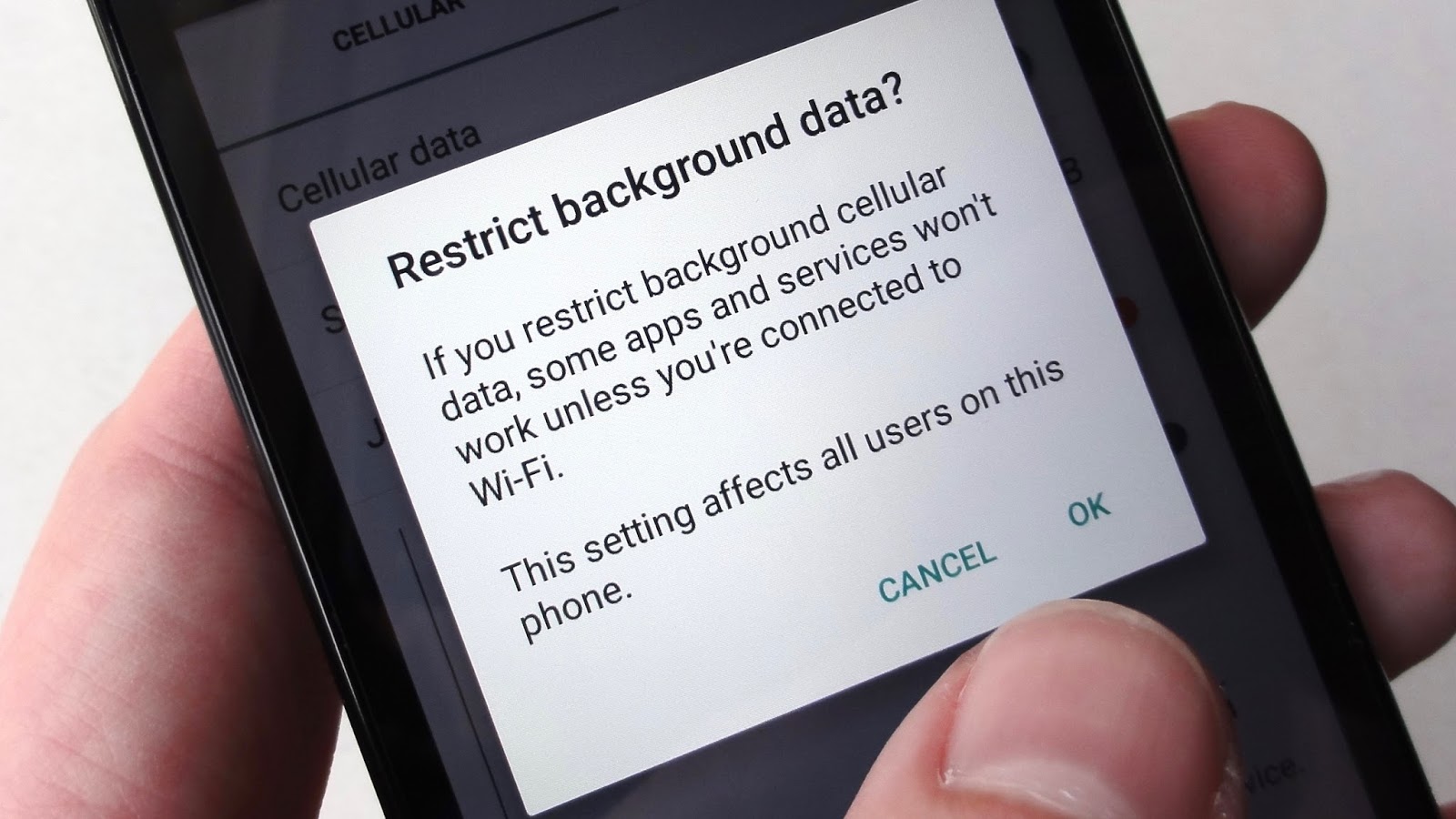
    When you aren’t using mobile data, some apps continue to use it in the background. Social networking apps, messaging apps and other real-time info apps keep using data in the background. Even the Android OS services keep connecting to the internet using your precious mobile data.


    To prevent this from happening, you can go to Settings > Data Usage and select the apps you want to restrict manually. In the stats, you will also get information on how much data each app is using in the foreground and how much of it gets used up in the background. The process isn’t as simple and easy as Opera Max but it’s an alternative to get the detailed stats and restrict data usage.

    If you want to go the extreme route, you can disable background data usage altogether but keep in mind that you won’t get any real-time notifications.

    Set the Play Store to Update Apps Over Wi-Fi Only

    The heading pretty much explains what we mean here. Most users keep getting app updates over mobile data, using your precious data without your permission. Huge amounts of data gets wasted on continuous updates.

    To save data, go to Play Store and open the side menu. Go to Settings and select “Auto-Update apps” button and check (tick) “Auto-Update apps over WiFi only”.

    If you don’t get access to WiFi, you can still update apps manually by opening the Play Store and starting the update process by going to the My Apps section.

    Go Deep Into Sync Settings to Save Some Data

    Everybody wants to get instant email notifications and get their info synced with all the accounts they have signed-in on their Android smartphone. The first thing you can do is to manually turn on and turn off the sync service.

    The next thing is to go to Settings > Accounts and have a look at all your accounts that use the sync services. There are some services that you never use but they keep syncing and using data. For example, when you select a Google account, you will sync enabled for App data, Calendar, Chrome, Contacts, Docs, Drive, Gmail, Google Fit, Opinion Rewards, Photos, Play Music, Google+, and even more stuff. Most users don’t use half of these services so it’s best to disable sync for the useless services.

    You can do the same thing for other accounts as well.

    Streaming is the Enemy of Mobile Data

    Streaming videos, music, looking at high quality images and GIFs burns through your data before you can realise it. Unless you have a very big data package, you must keep an eye on your data usage (Opera Max can help with that too).

    Limit you data streaming since avoiding it must be impossible for most people. Another thing you can do is set the video or sound quality to a bit lower. This will help reduce data consumption.

    When Going Outside WiFi range, Cache Data

    Some apps clean cache to save space. It does clean up space but the cached data reduces data consumption by huge amounts. Browser and other internet oriented apps need cache to make them load faster and save on data.

    Some apps allow local storage, like the Google Maps (and some other map apps), Play Music and Google Translate. Some apps can download the data you need which can be done while using a WiFi connection. You can stream or load the content that you might need before you leave your house. That content will get cached and save you some money on your internet usage.

    Wrap up

    We hope our list of tips will help you save a lot of data and make better use of those packages that only allow you to get connected with only a certain few apps at cheaper costs. These tips certainly won’t hinder your smartphone without internet but they will make it use less data. Besides what is a smartphone without an internet connection?

    If you have any other tips, suggestion or questions, ask them in the comments below.

  • 10 Things you Need To ask Before You Buy Next Mobile Phone

    If you are looking to invest in the latest smartphone, there are some things that you might want to consider before jumping to a hefty payment. Since smartphones are all the rage these days, there are a number of models that might be deceptively appealing without being of much use.

    In cases like these, it is a prudent decision to wait and ask a few questions before buying a shiny, new smartphone.

    In this article, we’ll over the top 10 questions that one must keep in mind while shopping for the latest coveted mobile phone.
    1. Which operating system would I find most useful?
    When it comes to operating systems, Android dominates the smartphone world and with decent reason. Not only does it have a wider choice range than any Windows or iOS phone in terms of design, compatibility, specs and prizes; but they are also easier to customise and employ for multitasking.

    In fact, Android 5.0 Lollipop has a more intuitive design and offers advanced ‘Priority Settings’ that you can use to customise notifications, etcetera.
    2. What processor is best?
    The key to finding a good processor is looking at the customer reviews. A good processor means that the apps can be accessed faster, games will run more efficiently and other detailed apps will work better. The new octa-core processors in the market today have been labelled as the best, as they allow for instant processing and console quality gaming.
    3. What size smartphone is best for me?
    Since a smartphone is a fair investment, a useful question to ask is how heavy the phone should ideally be. Since this is an issue that concerns the size and make of the phone, it must be considered seriously. Normally, phones more than 170 grams have been shown to be quite bulky or cumbersome to carry around. Phones such as the iPhone 6 is a mere 130g and as opposed to the 184g Nexus 6 is easier to handle.
    4. What screen size do I want?
    Screen size is a fairly important factor when buying a smartphone. Most phones that are 4.5-5.- inches in screen size, such as the iPhone 6 or the Samsung Galaxy 6 are easier to use and carry around. On the other hand, if you require a larger screen space for purposes of reading or multitasking, it might be more prudent to opt for the Samsung Galaxy Note 4 that has a screen size of more than 5.5-inches.
    5. How many pixels is enough?
    When you look at the specs concerning display and sharpness of the images, it is a good idea to hunt for the phones that have a Quad HD resolution or 2560×1440 pixels. Phones that have 1280×720 pixels might cause a loss of definition in pictures and videos. Most devices feature 1920×1080 screens, or Full HD.
    6. What about camera megapixels?
    Most smartphone cameras feature 16MP sensors. Anything above 8MP however should be more than adequate. The other thing that you must look out for is a larger aperture. The larger the aperture, the easier it is to shoot in dim light and this is perfect for those who are photography enthusiasts. Generally, cameras with an f/2.0 or less boast wider apertures.

    7. How much RAM do I need?

    For the average user, 1GB of RAM is more than enough. Flagship smartphones will begin to feature 4GB RAM reserves, but generally 2GB is par.
    8. How much internal storage should I look for?

    This feature depends entirely on what you’re interested in storing on your phone. However, a good ballpark figure to aim for is 16GB. Since there are some games that can occupy 1GB alone, this figure should be taken only as a base value. 32GB phones are much more efficient, and if that does not work out there is always the option of a micro SD. The latter is probably another key feature you should look out for.

    9. Is there a removable battery?

    This is one of the rarest features one will find in a smartphone today. One of the phones that still has this option is the Samsung Galaxy Note 4 and the LG G4, and it is worth noting that removable batteries are one of the most cost-effective methods of replacing the battery, without replacing the entire phone.

    10. Is there wireless charging support?

    In a digitalised, wireless world it is not merely enough to have wireless internet. The latest improvement that smartphone companies are investing in is a wireless charging console. The concept requires a wireless mat and all one has to do is place it on the mat for the phone to be charged. Since this is the newest improvement, not many phones will boast of this feature. Yet, it is worth querying if your phone does in fact support it.

    Bonus: What’s the price?

    You should always purchase a smartphone based on your set budget. Once you have decided that, go online and compare phone prices between different merchants, shortlist the mobiles that come in your range and then compare the specifications. This little exercise will help you pick the best from the lot in the price that you can afford.

    The above questions have been designed not only to help you make the right decision for yourself but also to ensure that you do not get trapped in the pitfalls of some marketing gimmicks. Overall, it is always a good idea to read the reviews before purchase and also to correctly assess personal requirements before investment.
  • Google Docs Even Without An Internet Connection

    You can save files to your computer or phone

    Services like Google Drive can be a life-saver if you typically use more than one device for work. Creating a file in Google Docs means it’s accessible from any device, so long as you’re logged in to your Google account.


    The disadvantage of using a cloud-based service like this, though, is that they’re often limited when you’re stuck without an Internet connection. But you can still view and edit files offline in Google Docs by following a few quick steps. Remember that you need an Internet connection to complete this initial setup process.

    Here’s how to do it:

    Setting up offline mode

    If you’re using an Android phone, you can activate offline mode by opening the Google Drive or Docs app, pressing and holding a file that you’d like to access offline, and tapping the icon that looks like a checkmark.

    You can do the same on the iPhone by launching the app and tapping the “More” option next to the file you want to access offline. That option looks three dots stacked on top of one another. Then tap the choice that says “Available offline.”

    If you’re working in the Google Chrome browser on your computer, you can choose to have all of your files synched and saved for offline use rather than selecting them individually. Just make sure you’re signed into Google Chrome, open Google Drive, and click or tap the Settings symbol, which looks like a cog. Then check the box in the “Offline” field that says “Sync Google Docs, Sheets, Slides & Drawing files to this computer so that you can edit offline.”

    Finding your offline files
    Once you’ve chosen the files you’d like to access offline, you can find them within the Google Drive app for Android or iPhone by tapping the menu button at the top of the screen next to the “My Drive” header. Then select the field that says “Offline” to view any saved files. If you’d like to view and work on offline files on a desktop or laptop computer, download the Google Drive app, which is available for Mac and Windows.
  • WHAT WE DO

    We've been developing corporate tailored services for clients for 30 years.

    CONTACT US

    For enquiries you can contact us in several different ways. Contact details are below.

    RUDER FINN INDIA

    • Street :Unit 001A, Tower B, Ground Floor, Global Business Park, MG Road, Gurgaon – 122002, INDIA
    • Person :Radha Roy
    • Phone :91 124 388 2870
    • Country :India
    • Email :royr@ruderfinnasia.com

    Radha Roy.

    Radha Roy Country Head 91 124 388 2870 royr@ruderfinnasia.com Unit 001A, Tower B, Ground Floor, Global Business Park, MG Road, Gurgaon – 122002, INDIA